VMware View 4.5 Linked Cloning explained
I previously discussed the new Storage Tiering feature introduced with VMware View 4.5, and provided high level guidance on how to calculate storage consumption based on use of Replica Disks located in a single datastore. What I haven’t explained is how all this happen from a file level perspective in the data stores. VMware Linked Cloning technology is still seen as a dark art by many. So, let’s recapitulate how it works, but now with VMware View 4.5 as some changes apply.
The administrator first creates what is called the Parent VM or Master Image. This is a virtual machine running Windows 7 or XP customised with recommendations for virtual environments. See VMware View Optimization Guide for Windows 7 (VMware) or Mastering VDI Templates updated for Windows7 and PCoIP (my blog).
After a Parent VM is assigned to a Desktop Pool a clone (Thin Size) of this VM is created. This Thin clone is called Replica. In VMware View 4 this VM was created in each datastore hosting virtual desktops for the Desktop Pool. In VMware View 4.5 the administrator has the ability to specify a single datastore to hold the replica for an entire vSphere cluster. I think it is better to demonstrated in a picture.
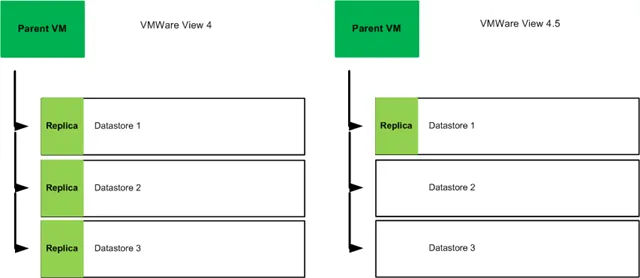
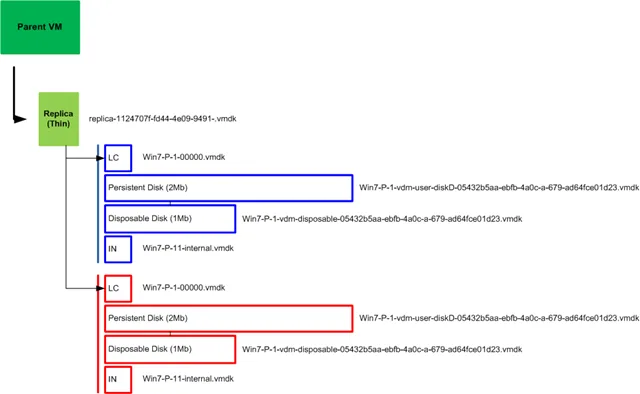
After the replica is created VMware View start creating Linked Clones. The linked clone (LC) is an empty disk that will grow overtime according to block changes requested by the Windows GuestOS. This disk is also called Delta disk because it accumulates all delta changes, and can grow to a maximum size of the Parent VM. This replica disk is read-only and used as primary disk. The writes and/or block changes are written/read from and the Delta disk.
It is a recommended practice to allocate Tier 1 storage such as SSD drives to host the replica as all virtual desktops in the cluster will be using a single read-only VMDK file as their base image. This could drive huge amount of IOPS from a single LUN and need to be carefully calculated.
The Disposable Disk
VMware View also creates an optional disposable disk for each virtual desktop. This disposable disk contains temporary files that are deleted when the virtual desktop is powered off. The files on the disposable disk are: the pagefile, windows system temporary files and VMware log files.
User temporary files are kept on the persistent disk, and this may include files written to %USERPROFILE%\AppData\Local\Temp or Internet Temporary Files. These are the temporary files that can grow very fast and consume disk space form the Persistent Disk (will talk next). If deleting user temporary files when the machine is powered off is not an issue in you deployment, I recommend changing the path for those files to point to the disposable disk.
The Persistent Disk
Persistent disk is the new name for the old UDD (User Data Disk) and maintains the same characteristics of the UDD. The user profile is redirected to this disk that now in View 4.5 can be managed, detached and attached to different virtual desktops. As a general rule if you are using roaming profiles, make sure this disk is large enough to cater for your largest roaming profile, or apply a limit to roaming profiles itself. As this disk is not going to grow overtime the space may not suffice if the profile becomes too large. This is a subject for a whole new post anyway.
The Internal Disk
The last disk created by View 4.5 that I want to talk about is the Internal Disk. This disk is tiny and is created to store the computer account password to ensure connectivity to the domain when a desktop is refreshed (I’ll discuss later in this post). Additionally, the configuration for Quickprep and Sysprep are stored in this disk.
The overview of the file structure would look similar to the diagram below. Few additional files could also be present in the VM folder such as logs, swap and suspension.
Linked Cloning Operations
I’m saving this for a next article but just as a sneak peak it is important to notice that VMware View 4.5 has changed the way provisioning, customisation, refresh and rebalance are completed. They are now smarter and more efficient.
As an example, the Refresh operation now utilises a snapshot and the information contained in the internal disk to revert back to the original state of the VM. In View 4 the refresh used to delete the whole VM, create a new linked clone and re-customise the GuestOS.
I have already published Linked Clone Operations article at /?p=1237
VDI Calculator
I would like to mention that my VDI Calculator is already configured to take all these changes in consideration when calculating storage consumption. Look for a field named Dedicated Replica Datastore and find the storage breakdown at the bottom of the page.
5 comments from the original blog
Ryan Snell
Good stuff - glad to see this technology mature and bring down the capacity requirements for VDI. As for the primary storage for this, WhipTail's Virtual Desktop XLR8r is a MLC based flash storage array that can deliver the read/write IOPS this will need (250,000) at around $30 per user.
Good to see all of this moving forward!
Pieterjan Heyse
Good information.
What if we have a 3 server cluster and have local ssd in all of them, how can I make sure that all my servers contain a local copy of the replica? In View 4 this is automatically managed, the changes in View 4.5 seem to make only a replica on one server in the cluster?
Andre Leibovici
Pieterjan, even using View 4.5 you are able to specify that you do not want to use a dedicated Replica datastore. If you intend to use local datastores make sure you do not select Dedicated datastores. Conversely you could also use a dedicated SSD shared storage pool for the Replica and locate the Linked Clones on local storage.
iwan 'e1' Rahabok
Thanks Andre,
Where do the following go:
- Application update. E.g. FireFox update. Assume we're not using ThinApp :-)
- AV update. e.g. TrendMicro OfficeScan update. Assume we're not using DeepSecurity.
Besides Windows updates, what kind of files go to Delta Disk?
Thanks from Singapore
e1
Andre Leibovici
@iwan ‘e1? Rahabok
When using Linked Clones any applications of editions to the guest OS will be placed into the delta disk. You may use persistent disks to store user related data, such as profile, documents etc.
Andre
Comments are preserved from the original site and are closed.