Optimising PCoIP Display & Imaging
I commonly receive questions about PCoIP tunning over the LAN & WAN. At Sydney vForum2010 this was the theme of multiple questions during the big VMware View Q&A session.
There is a great document from Teradici downloadable from their website that explain in much more detail what can be done for PCoIP optimisation, but there are few things I would like to share as it may help you instantly if you already have properly architected your network and desktop image.
It is also important to keep close eyes on others components that will directly affect PCoIP performance:

There settings (PCoIP Optimisation) allow you to optimise your PCoIP display experience. These settings are optionally enabled or set via Group Policies (CPO), or they are hidden in the registry.
PColPMaxLinkRate GPO
Set to the desired maximum PCoIP session bandwidth in kilobits per second (e.g. 1000 = 1000Kbps = 1Mbps).
Default is 1Gbps, 0 = no bandwidth constraints.
PColPlmagingMinimumlmageQuality GPO
Set to a value between 30-100 (default is 50). In a limited bandwidth scenario this setting allows configuring the preference between:
- A higher frame rate (lower value) for smooth motion, with lower image quality.
- A higher image quality (higher value) for crisp imaging, with less smooth image motion.
PColPlmagingMaximumlnitiallmageQualitv GPO
Set to a value between 30-100 (default is 90). In a limited bandwidth scenario, this setting allows configuring the preference between:
- A higher initial image quality, with larger peaks in bandwidth during large screen changes.
- A lower initial image quality, with smaller peaks in bandwidth during large screen changes.
Note: if used, consider adjusting the maximum imaging quality before applying a bandwidth limit or adjusting the minimum image quality.
PCoIP.maximum_frame_rate
Default is 30 frames per second (fps). In a limited bandwidth scenario, this setting allows configuring the preference between:
- A higher frame rate for smooth display imaging motion, with possible increased average network bandwidth.
- A lower frame rate for a lower average network bandwidth, with less smooth image motion.
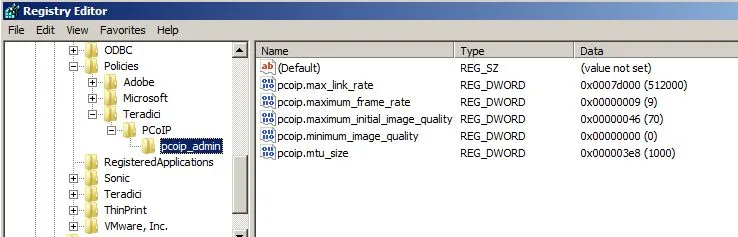
If used, create a registry key: HKEYLOCAL_MACHINE\SOFTWARE\Policies\Teradici\PC0IP\pcoip_admin\pcoip.maximum_frame_rate Setting in Hz (e.g. 8, 12 or 15 fps). Must be entered as a REG_DWORD.
Update(16/12/2010): This is how your desktop registry entries should look like.
8 comments from the original blog
JZ
Hello,
I have question to pcoip.maximum_frame_rate. On VMware View infrastructure, on which virtual machine i need set this value? on the gold image or on every linked clone VDs? If I have tried create registry key in gold image machine, in linked virtual desktops this value is not shown...
many thx JZ
Andre Leibovici
Hi JZ,
You need to set pcoip.maximum_frame_rate value for each individual virtual desktop running in your envrionment. You can either set that in the Parent VM or in the LC. If using the Parent VM make sure you create the registry entry in the LOCAL_COMPUTER.
Ed
Aren't these registry values supposed to be in the key HKEY_LOCAL_MACHINE\SOFTWARE\Policies\Teradici\PC0IP\pcoip_admin_defaults?
I see in your article you reference pcoip_admin, but all the Teradici articles and VMWare view articles reference pcoip_admin_defaults.
Also, if we're using the Wyse P20 clients connected to desktops via VMWare View, the image quality adjustments available on the Wyse P20 won't work since we're going from hardware to software right?
Andre Leibovici
@Ed
The registry entries should be located at HKEY_LOCAL_MACHINE\SOFTWARE\Policies\Teradici\PCoIP\pcoip_admin or in a plain text file at C:\ProgramData\Teradici\pcoip_server_settings.txt
The Wyse P20 are Zero-Client with built-in PCoIP software. These settings are still applicable for any PCoIP enabled ThinClient, hardware or software. The plan text setting will only work on Soft clients.
Jason Clarke
Hello,
The registry entries are not showing on our machines,? is there some software we need to install on the Virtual machines?
We already have View agent 4.5 installed.
Andre Leibovici
@Jason Clarke
You need to deploy the VMware View ADM templates to your Active Directory Group Policies. You will find the templates on your connection server under /program files/vmware/vmware view/server/extras. The VMware View installation Guide also provide guidance on how to deploy the templates.
After you configure the templates you will see the registry entries in your VMs.
Matt Lesak
Check ou the following doc as well for additional guidance and information:
http://www.vmware.com/files/pdf/view/VMware-View-5-PCoIP-Network-Optimization-Guide.pdf
Bluebeep
How does one optimize if you're NOT in an active directory environment but in a workgroup instead?
Comments are preserved from the original site and are closed.