Easy Docker Persistent Volume Protection and Replication with Datrium
In my previous article "Docker Bare-Metal – Persistent Volumes with Datrium GraphDriver Plug-In (How-to)" I talked about how to deploy Docker with persistent volumes on bare-metal servers with Datrium. This article now focuses on backing them up and replicating to a secondary site or to the cloud.
First and foremost, it is essential to understand that Datrium can uniquely address Docker volumes backup and replication with native non-disruptive snapshots that have zero impact on volumes and applications usability or performance.
After creating a persistent volume using the Datrium GraphDriver Plug-In a native self-contained .raw file is created under /mnt/datrium/Datastore/docker/volumes/images for each persistent volume. Datrium administrators may select individual volumes to be included into protection groups. It's effortless!
Step 1 - In Datrium DVX GUI select Protection and Create a Protection Group. Name this PG as "Docker Volumes" and select the source Datastore. Since these .raw files and independent volumes that may or may not be associated with a container, you will need to select them independently. Select the option "Select individual files."
[Click image to enlarge]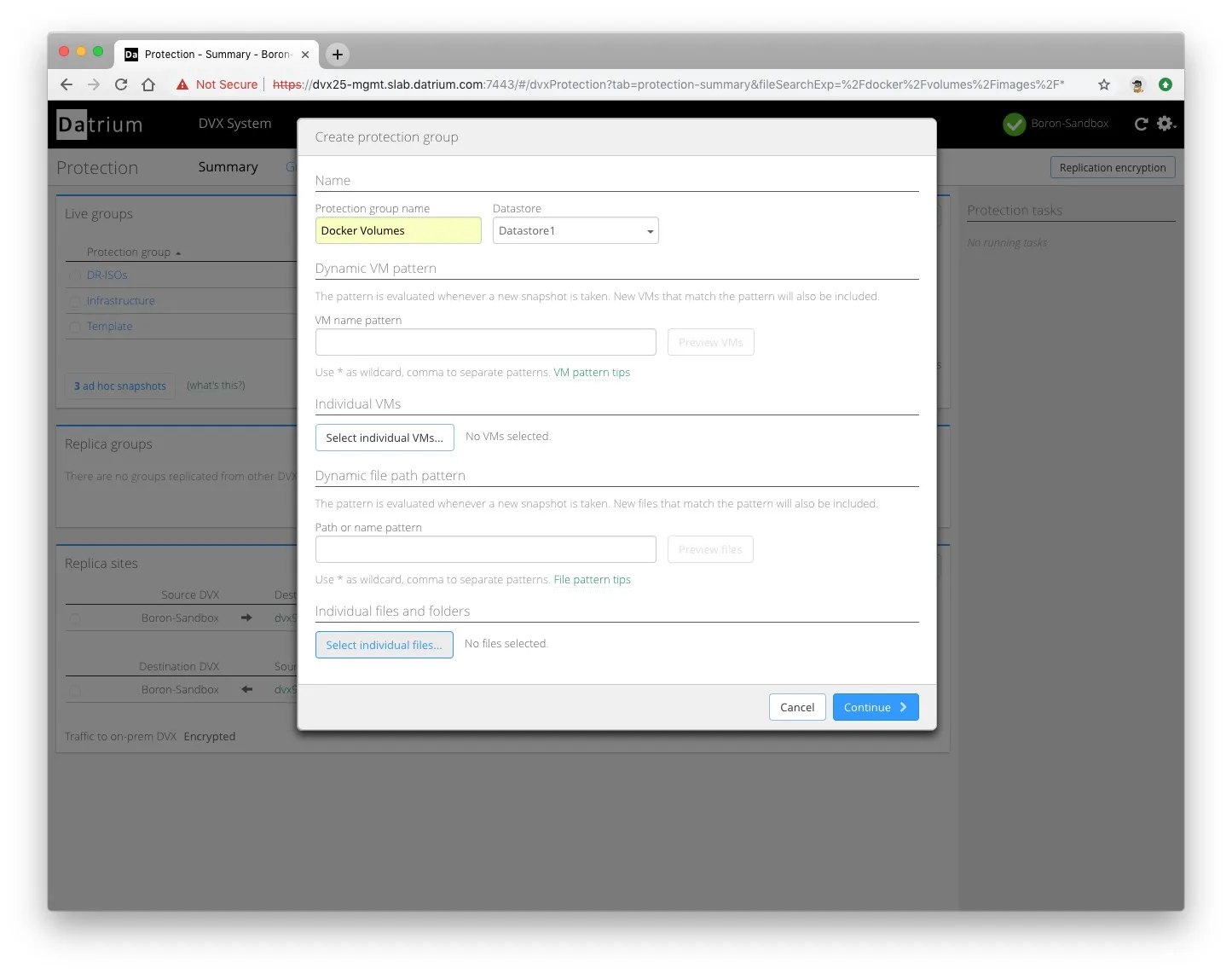
Step 2 - On the navigation pane go into the folder /mnt/datrium/Datastore/docker/volumes/images and select the .raw files you would like to add to this protection group. You may create multiple protection groups with different schedules and behaviors for different Docker volumes.
[Click image to enlarge]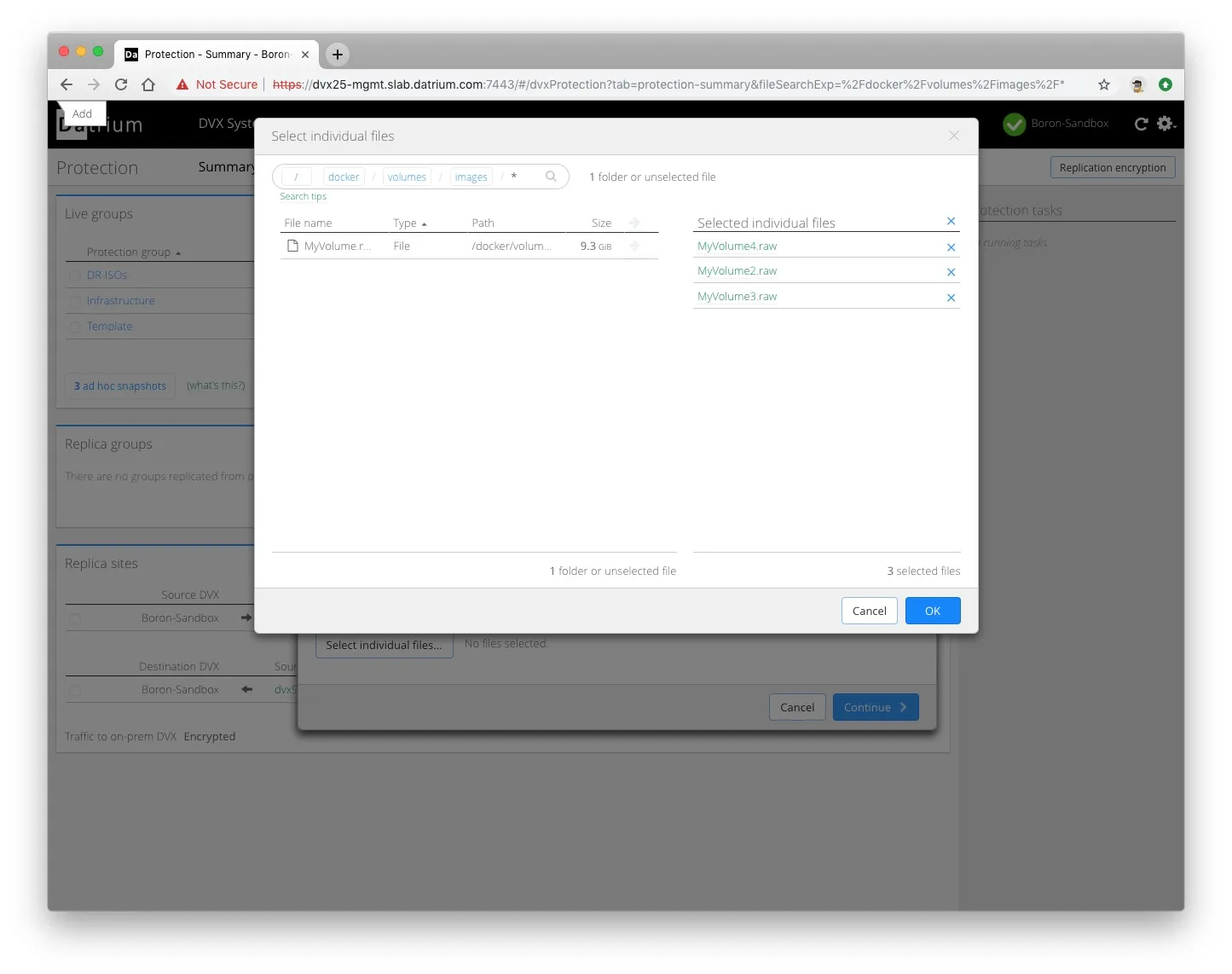
Step 3 - Configure the protection schedule for the local snapshots and backups, and if replication to a secondary site or to the cloud is required, select "Replicate Snapshots" and select the destination and retention policy. Click Create group and you are done!
[Click image to enlarge]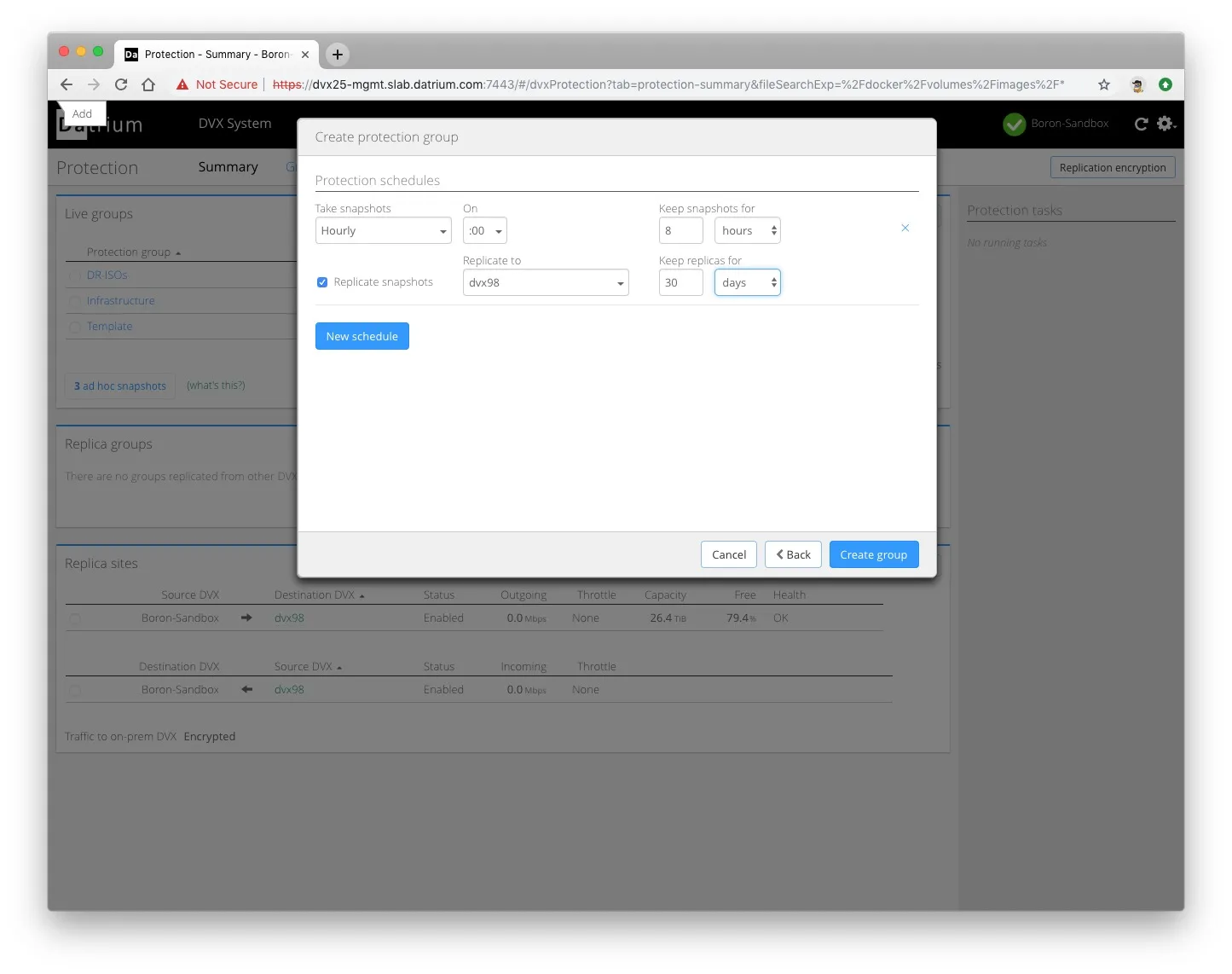
Lastly, if you want to force a snapshot, backup or replication right now, navigate to the Docker Volumes protection group and click on "Take snapshot."
[Click image to enlarge]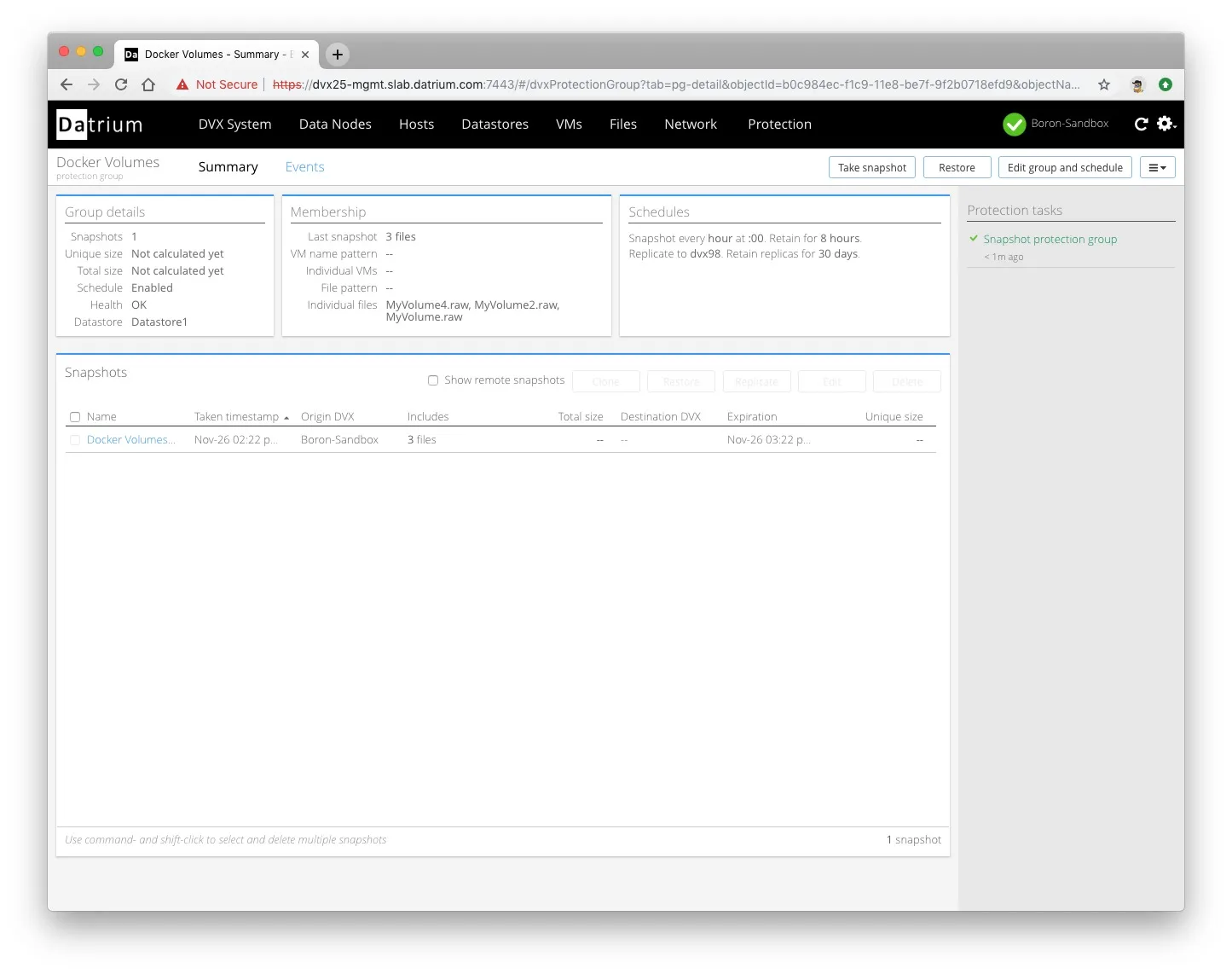
Restores - I am not describing the restore process here, but it is also very simple. You need to select an existing local or remote snapshot and click the Restore button. Datrium will ask you where you want to re-instantiate the version of the volume (replace or create a clone) and it's done. In such a case, you would need to restart the container to enable it to capture the new volume.