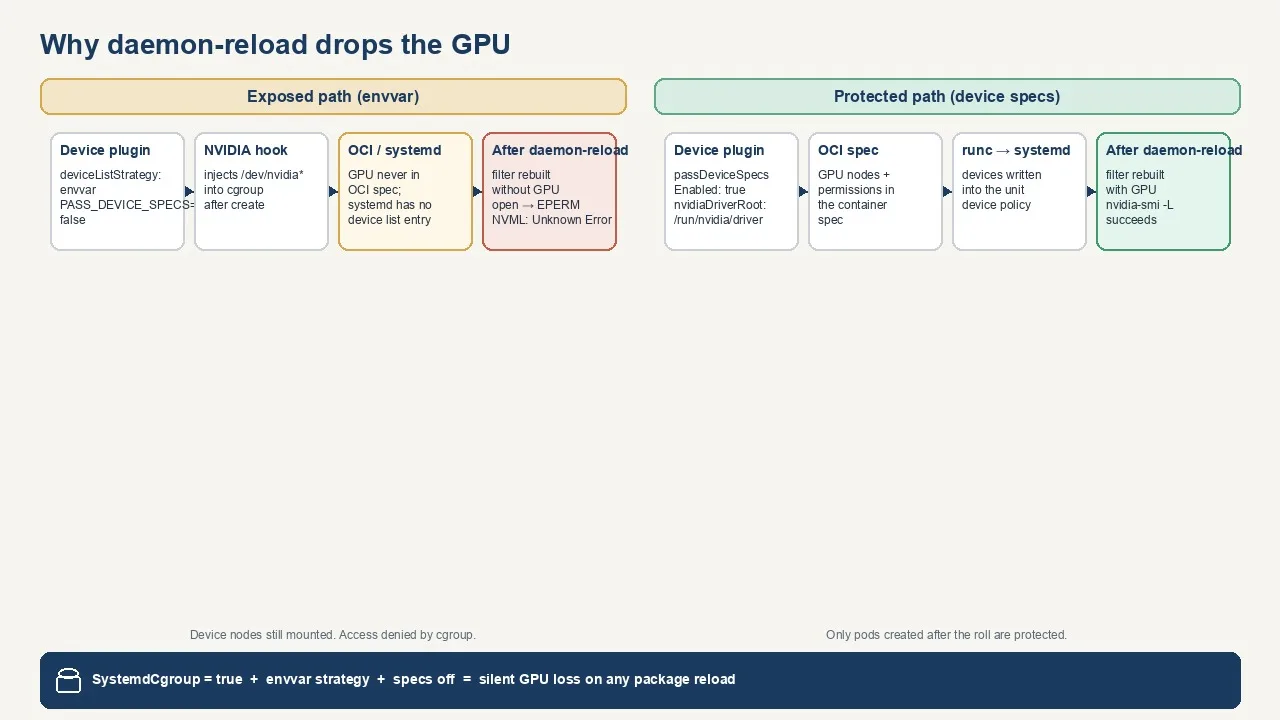
 Why systemctl daemon-reload drops GPUs from running Kubernetes pods
· kubernetes
Why systemctl daemon-reload drops GPUs from running Kubernetes pods
· kubernetes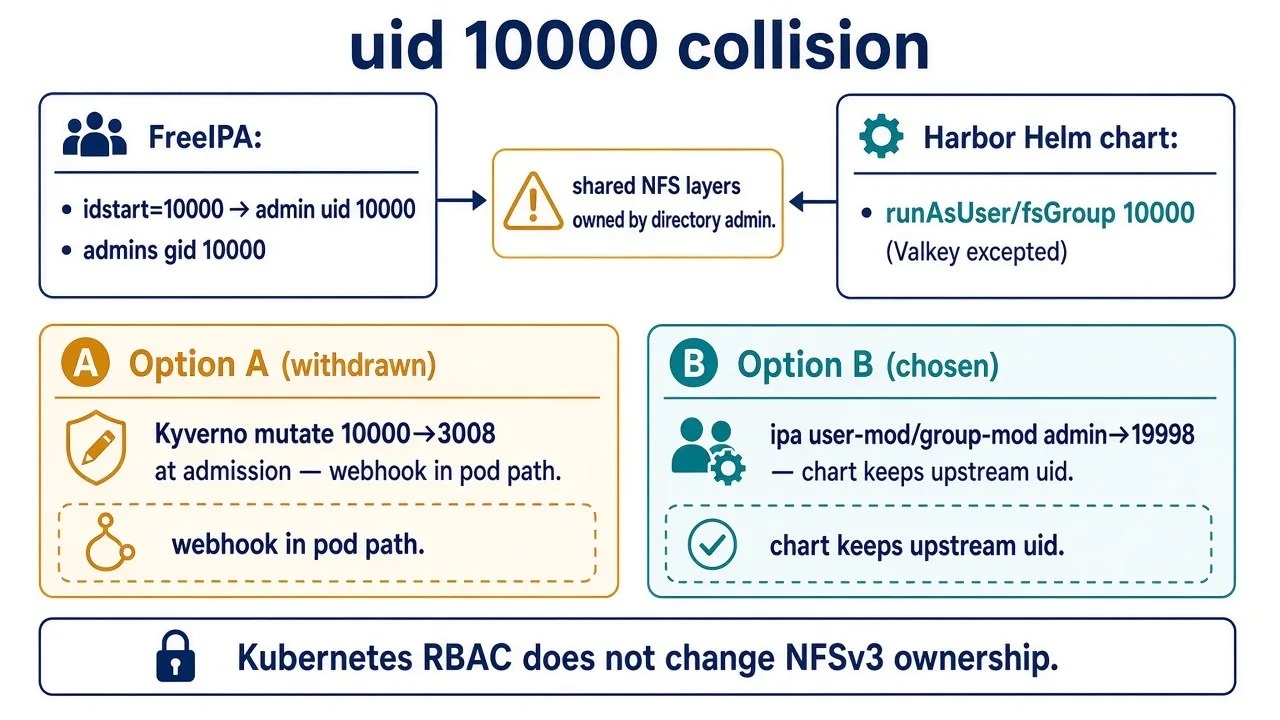 Resolving the Harbor uid 10000 vs FreeIPA admin collision on Kubernetes
· kubernetes
Resolving the Harbor uid 10000 vs FreeIPA admin collision on Kubernetes
· kubernetes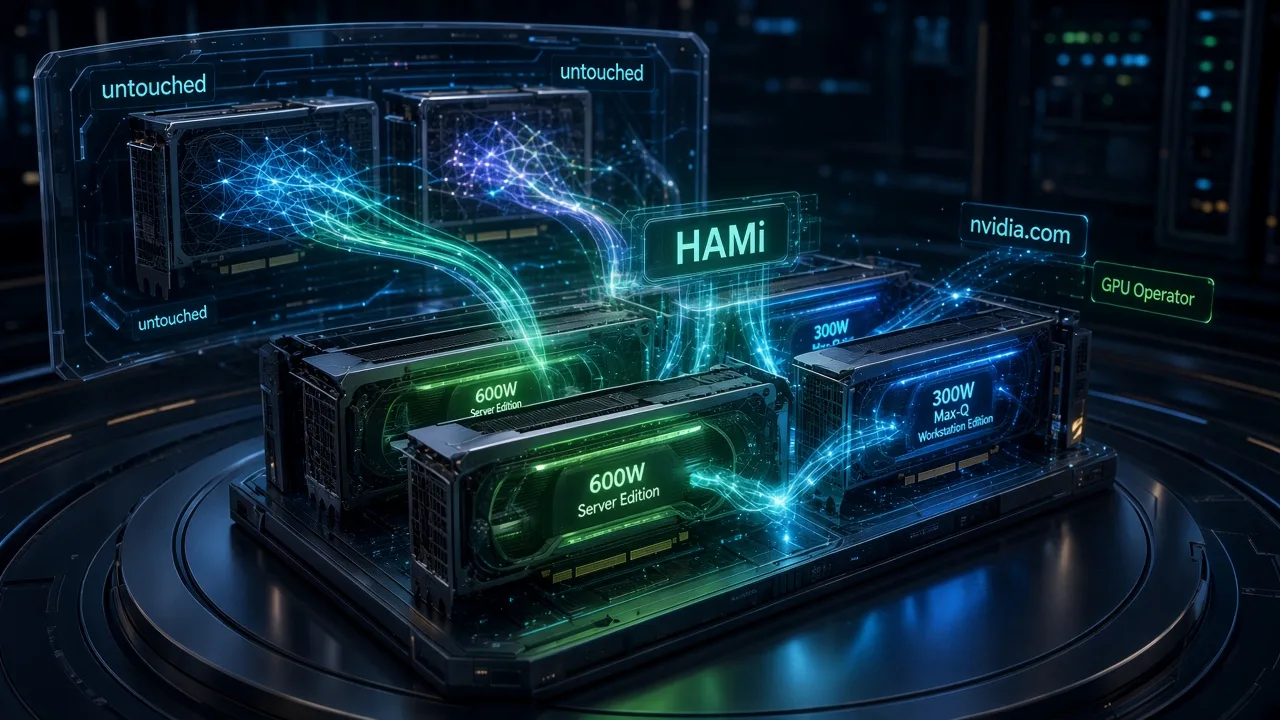 Handing one node's GPUs to HAMi without touching the live models
· machine-learning
Handing one node's GPUs to HAMi without touching the live models
· machine-learning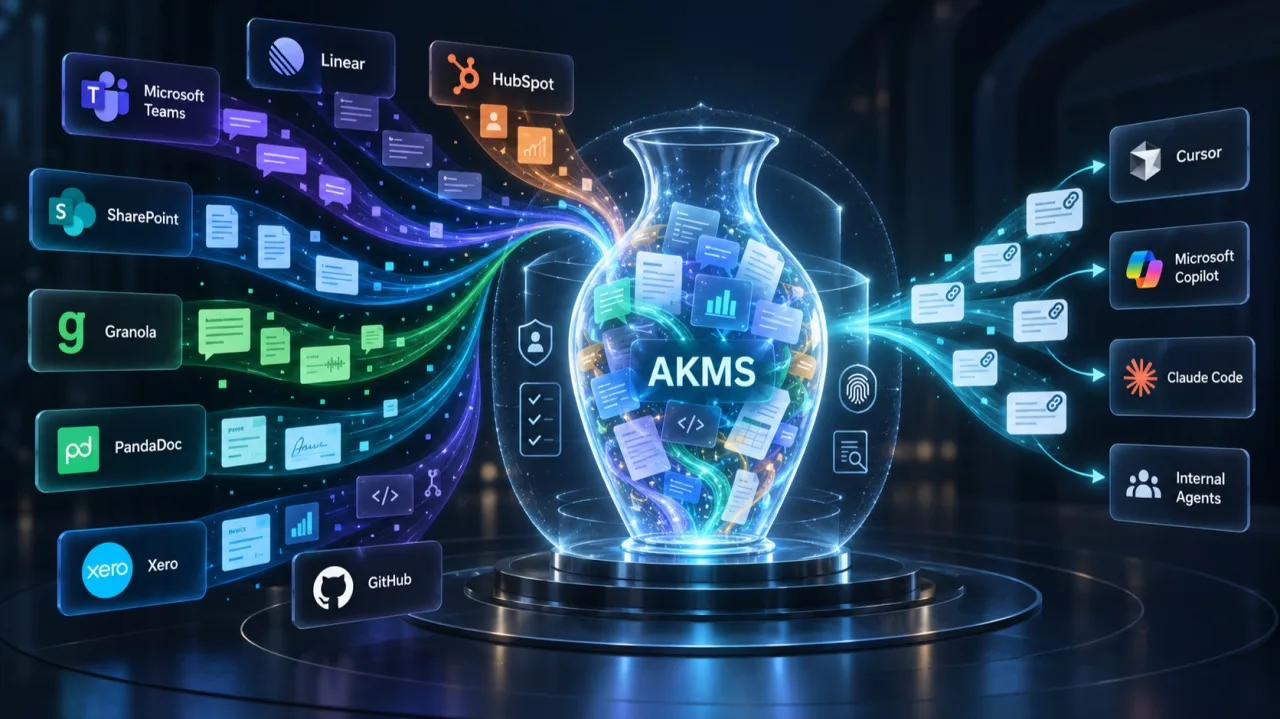 The Answer Was Already in Teams. We Just Couldn't Find It.
· machine-learning
The Answer Was Already in Teams. We Just Couldn't Find It.
· machine-learning How our document classifier votes before it ever asks a language model
· machine-learning
How our document classifier votes before it ever asks a language model
· machine-learning How I Built ASI's Marketing Engine Around AI Agents
· machine-learning
How I Built ASI's Marketing Engine Around AI Agents
· machine-learning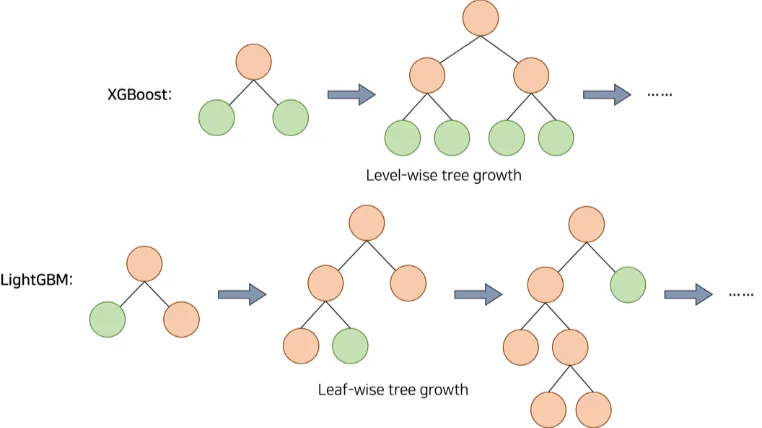 From XGBoost to LightGBM: How Our ML Model Adapted to Two Market Regimes
· machine-learning
From XGBoost to LightGBM: How Our ML Model Adapted to Two Market Regimes
· machine-learning- Announcing the Ollama GPU Calculator
· machine-learning
- Roundtable: How to Bring Enterprise-Grade Security Capabilities to SMBs
· virtualization
 The end of zero-day VPN attacks with zero trust
· virtualization
The end of zero-day VPN attacks with zero trust
· virtualization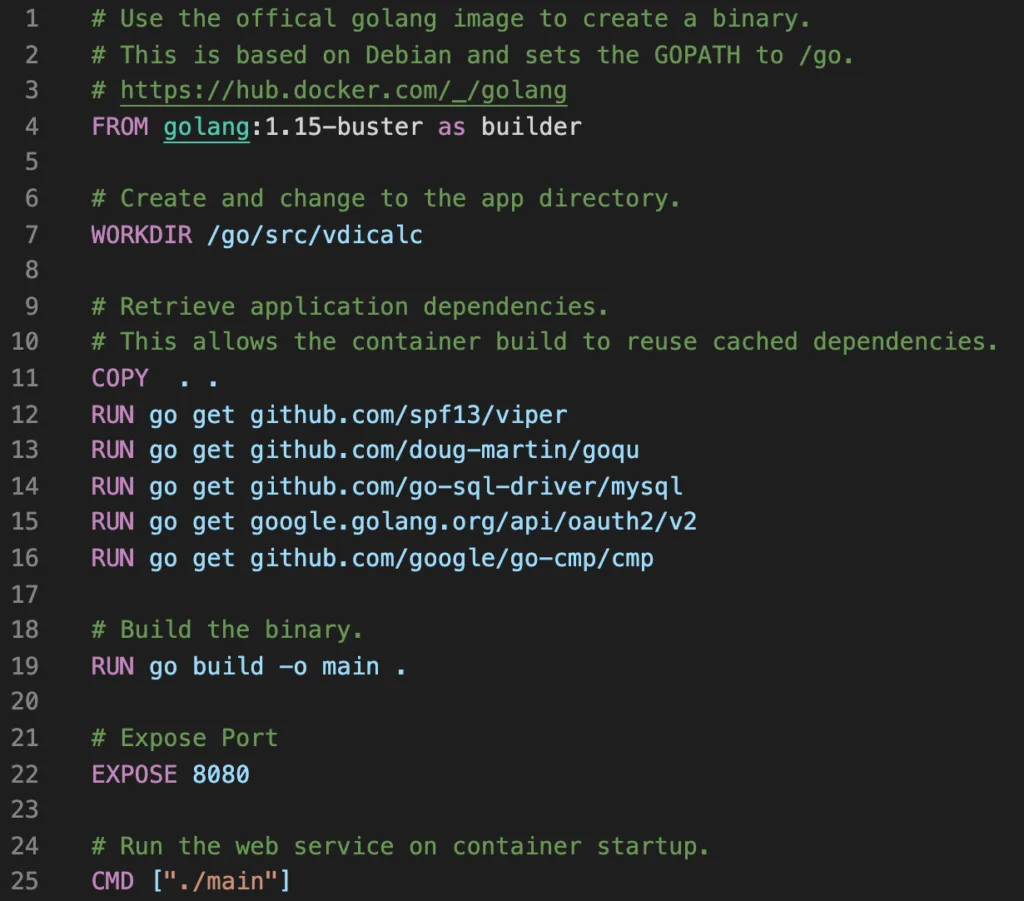 How I automated my CI/CD pipeline with Google Cloud Run, Cloud Build and GitHub.
· cloud-computing
How I automated my CI/CD pipeline with Google Cloud Run, Cloud Build and GitHub.
· cloud-computing Feature Spotlight: Citrix Secure Workspace Access – Part 3
· virtualization
Feature Spotlight: Citrix Secure Workspace Access – Part 3
· virtualization Feature Spotlight: Citrix Secure Workspace Access – Part 2
· virtualization
Feature Spotlight: Citrix Secure Workspace Access – Part 2
· virtualization Cha-ching! My First Citrix blog post is now Live.
· virtualization
Cha-ching! My First Citrix blog post is now Live.
· virtualization- The Right Time for a New Challenge
· personal